Imagine you are running Google Ads for your business. Your advertisements are receiving clicks, website visitors are increasing, and your advertising budget is being spent every day.
But there is one important question:
How many people are actually becoming your customers after clicking your advertisements?
Without proper conversion tracking, you cannot answer this question accurately.
You may be spending ₹10,000 on Google Ads every month without knowing which keywords generate enquiries, which campaigns produce sales or how much each customer costs.
This is where Google Ads Conversion Tracking becomes essential.
Conversion tracking helps you measure valuable actions that people take after interacting with your advertisements. These actions can include submitting an enquiry form, making a purchase, calling your business or booking an appointment.
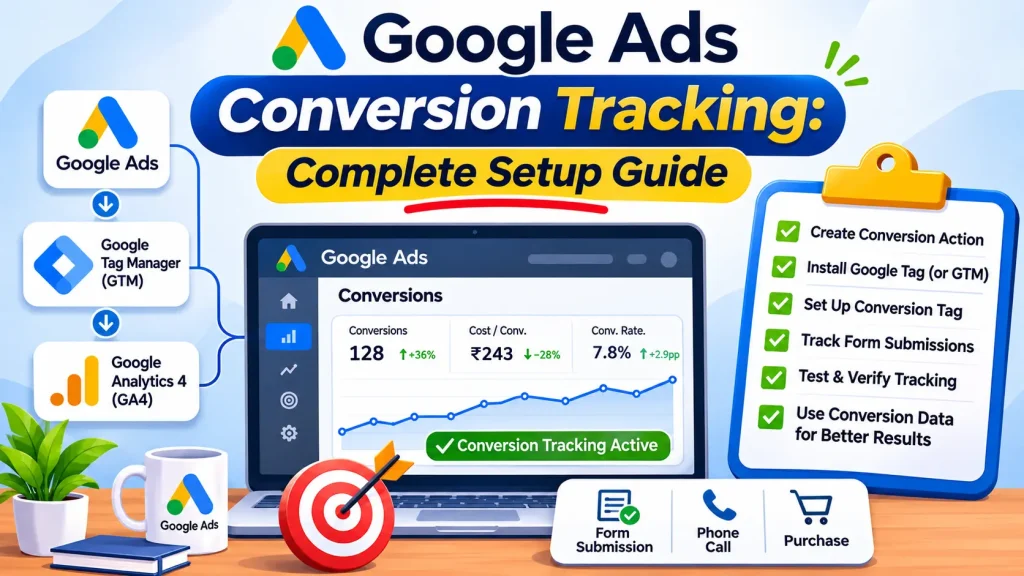
In this guide, you will learn what Google Ads Conversion Tracking is, why it matters and how to set it up using Google Ads, Google Tag Manager (GTM), Google Analytics 4 (GA4) and WordPress.
Whether you run a small business, coaching centre, gym, online store or service-based company, this guide will help you understand how to measure your advertising performance more effectively.
What Is Google Ads Conversion Tracking?
Google Ads Conversion Tracking is a measurement feature that helps advertisers understand what happens after someone interacts with their advertisements.
It records valuable customer actions on your website, app or other supported conversion sources.
For example, imagine you own a coaching centre and run Google Search Ads to generate admission enquiries.
A student or parent searches for coaching classes, clicks your advertisement, visits your website and submits an enquiry form.
If conversion tracking is configured correctly, Google Ads can record that form submission as a conversion.
Other examples include:
- A customer purchasing a product.
- A visitor submitting a contact form.
- Someone calling your business.
- A customer booking an appointment.
- A visitor signing up for a service.
- A potential customer completing a registration.
The important point is that not every website interaction should be considered a conversion. You should track actions that represent genuine business value.
Why Is Google Ads Conversion Tracking Important?
Running advertisements without conversion tracking is similar to running a business without maintaining sales records.
You may know how much money you spend, but you will not know which advertising activities are generating meaningful results.
Here are the main benefits of conversion tracking.
1. Measure Actual Advertising Results
Clicks and impressions tell you how people interact with your advertisements, but they do not necessarily tell you whether your business is receiving customers.
Conversion tracking helps measure the actions that matter.
For example:
- 1,000 ad impressions
- 100 clicks
- 15 form submissions
- 5 qualified leads
Now you have more useful information than simply knowing how many people clicked your advertisements.
2. Calculate Cost Per Conversion
Conversion tracking helps you understand how much you spend to generate a specific action.
For example:
- Total advertising cost: ₹5,000
- Total recorded leads: 25
- Cost per lead: ₹200
This information helps you evaluate campaign efficiency.
Remember that cost per conversion is not automatically the same as customer acquisition cost. You need to consider how many leads actually become paying customers.
3. Identify High-Performing Campaigns
Suppose you run two Google Ads campaigns.
Campaign A generates 20 leads at ₹250 per lead.
Campaign B generates 10 leads at ₹150 per lead.
Campaign B has a lower cost per lead, but you still need to evaluate lead quality and sales conversion before deciding which campaign is more profitable.
Conversion tracking gives you the data needed to make better decisions.
4. Improve Automated Bidding
Google Ads offers automated bidding strategies such as Maximize Conversions and Target CPA.
These strategies use conversion signals to help optimize campaign performance.
However, automated bidding depends on the quality of the data you provide.
If you track irrelevant actions, such as every page view or button click, as primary conversions, Google’s bidding system may optimize towards actions that do not generate real business value.
Therefore, accurate conversion tracking is important before relying heavily on conversion-based automated bidding.
Types of Conversions You Should Track
Before setting up conversion tracking, identify which actions matter to your business.
Different businesses need different conversion events.
1. Lead Form Submissions
Useful for businesses that collect customer enquiries through website forms.
Examples:
- Contact form submissions.
- Quote requests.
- Consultation bookings.
- Admission enquiries.
- Service enquiries.
2. Phone Calls
Useful for local businesses that receive enquiries through phone calls.
You may track calls generated through:
- Google call assets.
- Calls made after visiting your website.
- Other supported call conversion sources.
A phone number click is not necessarily the same as a completed phone call. Choose the appropriate measurement method for your objective.
3. Purchases
E-commerce businesses should track successful purchases.
Important information may include:
- Transaction ID.
- Purchase value.
- Currency.
- Product information.
For example, if a customer purchases a product worth ₹2,500, the conversion event should ideally record the actual purchase value and transaction details.
4. WhatsApp Clicks
Local businesses frequently use WhatsApp to receive customer enquiries.
You can measure clicks on your WhatsApp button as an interaction.
However, remember that a WhatsApp button click does not confirm that someone sent a message or became a customer.
If you want to measure qualified enquiries, use an appropriate CRM or lead management process.
5. Appointment Bookings
Businesses such as clinics, consultants and service providers may track completed appointment bookings.
A completed booking is generally more valuable than simply visiting an appointment page.
What Do You Need Before Setting Up Conversion Tracking?
Before starting the implementation, prepare the following:
- An active Google Ads account.
- Access to your website or WordPress dashboard.
- A working website conversion destination, such as a thank-you page or successful form event.
- Google Tag Manager, if you plan to use it.
- A Google Analytics 4 property, if you want to integrate GA4.
- Access to the relevant Google accounts.
- A clear understanding of which actions you want to measure.
Important: Do not install multiple copies of the same tracking tags without understanding your existing setup. Duplicate tags can result in inaccurate conversion reporting.
How to Set Up Google Ads Conversion Tracking
There are several ways to implement conversion tracking.
For a typical WordPress business website, Google Tag Manager is a useful option because it allows you to manage different tracking tags without repeatedly editing website code.
Let’s understand the setup process.
Step 1: Create a Conversion Action in Google Ads
First, you need to tell Google Ads which customer action you want to track.
Follow these steps:
- Sign in to your Google Ads account.
- Open the Goals section.
- Navigate to Conversions and select Summary.
- Click the option to create a new conversion action.
- Select Conversions on a website.
- Enter your website domain.
- Select Scan to identify available website data sources.
- Follow the instructions to continue setting up your conversion action.
Google’s interface may display slightly different options depending on your account and the current interface version.
You can create different conversion actions depending on your business requirements.
For example:
- Contact Form Submission
- Purchase
- Phone Call
- Appointment Booking
Choose a meaningful name for each conversion action so that you can easily identify it in your reports.
Step 2: Choose the Right Conversion Category
After selecting your website conversion source, choose the category that best describes the customer action.
Common categories include:
- Submit lead form
- Purchase
- Contact
- Book appointment
- Sign-up
- Phone call lead
For example, if you want to track successful contact form submissions, select the appropriate lead-related conversion category.
Choosing the correct category helps organize your conversion actions into relevant business goals.
Step 3: Configure Conversion Settings
This is one of the most important parts of the setup.
Google Ads provides several conversion settings that determine how conversions are recorded and used.
A. Conversion Name
Give your conversion action a descriptive name.
Example:
Website Contact Form Submission
B. Value
Choose whether you want to assign a value to each conversion.
For an e-commerce purchase, you should generally use the actual transaction value.
For lead generation, you can assign a fixed value if you have a reasonable estimate of the business value of each lead.
Do not assign arbitrary values simply to make reports look better.
C. Count
Google Ads provides different counting options depending on the conversion category.
For lead generation, the One option is often suitable because one person submitting multiple forms after a single ad interaction should not necessarily be counted as multiple independent leads.
For purchases, Every is generally appropriate because multiple purchases can represent separate business transactions.
Choose according to your actual business objective.
D. Conversion Window
The conversion window determines how long after an eligible ad interaction a conversion can be attributed.
Choose a window that reflects your customer’s buying journey.
For example, someone purchasing a low-cost product may convert quickly, while someone considering an expensive service may need more time.
E. Attribution
Attribution determines how credit for a conversion is assigned across eligible advertising interactions.
Google Ads offers different attribution models depending on the conversion action and account eligibility.
Data-driven attribution is available for many conversion actions and uses available data to distribute conversion credit across interactions.
Avoid choosing settings without understanding how they affect your reporting.
Step 4: Install the Google Tag on Your Website
The Google tag helps Google Ads measure website activity and connect eligible advertising interactions with conversions.
It should generally be installed across your website pages.
Google provides different implementation options.
You can install the tag directly using website code or manage it through Google Tag Manager.
For WordPress websites, Google Tag Manager can be a convenient option when you need to manage multiple tracking tools.
If you already have a Google tag installed through another Google product, check your existing configuration before installing another copy.
Google provides detailed instructions in its official Google Ads conversion tracking setup guide.
Step 5: Set Up Google Tag Manager
Google Tag Manager (GTM) is a free tag management system that allows you to deploy and manage website tracking tags.
Instead of manually adding every tracking code to your WordPress website, you can manage supported tags through your GTM container.
Follow these steps:
- Visit Google Tag Manager.
- Sign in using your Google account.
- Create a new account if you do not already have one.
- Enter your business or website name.
- Select Web as the target platform.
- Create your container.
- Copy the installation code provided by Google.
- Install the GTM container on your WordPress website.
Make sure the GTM container is installed correctly on all relevant pages.
You can use a suitable WordPress integration method or add the code manually through your website setup.
Avoid installing the same GTM container through multiple plugins or methods.
Step 6: Create a Conversion Linker Tag
If you are using Google Tag Manager, a Conversion Linker tag helps preserve advertising click information in your website’s first-party cookies.
This supports more accurate conversion measurement.
To configure it:
- Open your Google Tag Manager container.
- Select Tags.
- Click New.
- Choose Tag Configuration.
- Select Conversion Linker.
- Choose the All Pages trigger.
- Save your tag.
The Conversion Linker tag should generally run across your website pages.
This is particularly important when implementing Google Ads conversion tracking through GTM.
Step 7: Create a Google Ads Conversion Tracking Tag
Now you need to connect your Google Ads conversion action with Google Tag Manager.
In Google Ads:
- Open Goals.
- Select Conversions.
- Open the conversion action you created.
- Go to Tag Setup.
- Select Use Google Tag Manager.
- Copy the Conversion ID and Conversion Label.
Next, open Google Tag Manager.
- Select Tags.
- Click New.
- Choose Tag Configuration.
- Select Google Ads Conversion Tracking.
- Enter the Conversion ID.
- Enter the Conversion Label.
- Configure the appropriate conversion value and other optional parameters if required.
- Select the correct trigger.
- Save the tag.
The Conversion ID and Conversion Label are specific to your conversion action. Never copy another website’s tracking details.
Google’s official Google Tag Manager conversion tracking documentation explains the implementation requirements.
Step 8: Configure the Correct Conversion Trigger
This is where many beginners make mistakes.
Creating a conversion tag is not enough. You must tell Google Tag Manager exactly when the tag should fire.
For example, imagine your WordPress contact form redirects users to:
https://example.com/thank-you/
You can create a Page View trigger that fires when the thank-you page loads.
The configuration would look like this:
Trigger Type: Page View
Condition: Page URL contains /thank-you/
Tag: Google Ads Conversion Tracking
Trigger: Successful Thank You Page View
However, this method is suitable only when the thank-you page loads exclusively after a successful form submission.
If your form submits using AJAX without redirecting to another page, you may need a custom event or a suitable form-success event instead.
Important: Do not fire the conversion tag simply when someone clicks the Submit button. A button click does not prove that the form was successfully submitted.
Also Read: Facebook Ads Not Generating Leads? 12 Reasons and Solutions
Step 9: Publish Your Google Tag Manager Container
After configuring the tags and triggers:
- Review your GTM workspace.
- Check the Google tag configuration.
- Check the Conversion Linker tag.
- Check the Google Ads Conversion Tracking tag.
- Test the setup using Preview mode.
- Confirm that the conversion tag fires only after the intended successful action.
- Submit and publish your container.
Do not publish untested tracking changes on a live website.
Step 10: Test Your Conversion Tracking
Never assume that conversion tracking is working simply because you installed the tags.
You need to test the complete conversion journey.
Use the following tools:
Google Tag Assistant: Helps inspect Google tags and diagnose implementation problems.
Google Tag Manager Preview: Allows you to test tags, triggers and variables before publishing changes.
Google Ads Conversion Diagnostics: Helps identify issues with conversion tracking and tag status.
A practical testing process:
- Open your website.
- Start a test session using the appropriate preview tools.
- Visit the landing page.
- Complete the enquiry form using test information.
- Confirm that the successful form event occurs.
- Check whether the Google Ads conversion tag fires.
- Check whether the tag fires only once for that successful action.
- Review Google Ads conversion diagnostics.
Google Ads conversion status may take time to update after installation or corrections. Do not immediately assume that tracking has failed if the dashboard does not show a conversion straight away.
How to Track Form Submissions on a WordPress Website
For most service-based businesses, contact form tracking is one of the most important conversion events.
Suppose you use Elementor Forms on your WordPress website.
A visitor clicks your Google advertisement, reaches your landing page and submits an enquiry form.
You want Google Ads to record that successful submission.
There are two common implementation approaches.
Method 1: Thank You Page Tracking
This is generally straightforward when your form redirects visitors to a dedicated thank-you page after successful submission.
Example:
yourwebsite.com/thank-you/
Configure a GTM Page View trigger for that specific page and connect it to your Google Ads conversion tag.
Before using this method, ensure that visitors cannot reach the thank-you page without successfully submitting the form.
Also consider page refreshes and repeated visits to avoid duplicate conversion counting.
Method 2: Form Success Event Tracking
Some WordPress forms submit without reloading the page.
In that situation, a thank-you page trigger will not work.
You may need to configure an event-based trigger that fires after the form successfully submits.
The exact implementation depends on your form plugin.
For example, an Elementor form may require an appropriate success event or a custom data layer event.
Test the event carefully before connecting it to your Google Ads conversion tag.
The objective is to track a successful submission, not simply a button click.
Google Ads Conversion Tracking vs GA4 Conversion Tracking
Google Ads and Google Analytics 4 serve related but different purposes.
Google Ads conversion tracking measures actions for advertising performance and campaign optimization.
Google Analytics 4 helps you understand website and app activity, user journeys and engagement.
You can connect GA4 with Google Ads and import eligible GA4 key events as conversion actions.
However, you should understand the differences before choosing your implementation method.
Google Ads Conversion Tracking:
- Measures advertising conversion actions.
- Supports conversion-based bidding.
- Helps evaluate campaign performance.
- Can use Google Ads-specific conversion settings.
Google Analytics 4:
- Measures website and app interactions.
- Provides user journey and engagement reports.
- Helps analyze traffic sources.
- Allows eligible key events to be imported into Google Ads.
You do not necessarily need to import every GA4 event into Google Ads.
Choose the conversion actions that genuinely matter to your advertising goals.
Also, avoid counting the same business action twice through overlapping Google Ads and GA4 conversion implementations.
Primary vs Secondary Conversion Actions
Google Ads allows conversion actions to be categorized as Primary or Secondary.
Understanding this difference is important for campaign optimization.
Primary Conversion Actions
Primary conversion actions are included in the Conversions column and can be used for bidding optimization when the associated goal is used by the campaign.
Examples may include:
- Successful lead form submissions.
- Completed purchases.
- Qualified enquiry actions.
Secondary Conversion Actions
Secondary conversion actions are generally used for observation and reporting rather than standard bidding optimization.
Examples may include:
- Page views.
- Newsletter interactions.
- Other supporting website activities.
For a lead generation business, a successfully submitted enquiry form may be a Primary conversion, while a contact page visit may be a Secondary conversion.
Choose these settings carefully because incorrect configuration can affect automated bidding.
What Are Enhanced Conversions in Google Ads?
Enhanced conversions are designed to improve conversion measurement by using eligible first-party customer data, such as email addresses or phone numbers, in a privacy-conscious manner.
When properly configured, this information can help Google improve conversion matching.
Enhanced conversions may be useful for:
- E-commerce businesses.
- Lead generation websites.
- Businesses with suitable customer data.
- Advertisers seeking improved conversion measurement.
However, enhanced conversions require correct implementation and compliance with Google’s customer data policies.
You should:
- Obtain appropriate user consent where required.
- Follow applicable privacy laws.
- Use customer information only for permitted purposes.
- Ensure the implementation follows Google’s data policies.
- Avoid sending unnecessary personal information.
Do not assume that enabling enhanced conversions automatically fixes an incorrect tracking setup.
Common Google Ads Conversion Tracking Mistakes
Even experienced advertisers can make implementation mistakes.
Here are some common problems to avoid.
1. Tracking Button Clicks Instead of Successful Submissions
A visitor may click Submit without successfully submitting the form.
Track the successful event instead.
2. Installing Duplicate Google Tags
Multiple copies of the same tracking code can create inaccurate measurement or duplicate events.
Audit your existing WordPress plugins and tag installations.
3. Incorrect Conversion Triggers
If a tag fires on every page view instead of the actual conversion event, your reports will become misleading.
Use precise triggers.
4. Counting Every Page View as a Conversion
A page view is not automatically a business lead.
Choose meaningful conversion actions.
5. Ignoring Conversion Values
For businesses that need to measure revenue or lead value, missing or incorrect values can limit performance analysis.
Use accurate values whenever practical.
6. Not Testing After Website Updates
Changing WordPress themes, form plugins or website layouts can affect tracking.
Test your conversion setup after significant website changes.
7. Forgetting Mobile Testing
A form may work correctly on desktop but fail on mobile.
Test the entire conversion process across devices.
How to Check Whether Google Ads Conversion Tracking Is Working
After completing the setup, regularly review your conversion data.
Open Google Ads and navigate to the Conversions Summary.
Check:
- Conversion action status.
- Recording status.
- Conversion count.
- Conversion value.
- Primary and Secondary settings.
- Conversion diagnostics.
Also compare your Google Ads data with actual business records.
For example, if Google Ads reports 30 leads but your CRM contains only 12 genuine enquiries, investigate the difference.
Possible causes include duplicate tracking, accidental submissions, spam leads, attribution differences or measurement delays.
Do not assume that every reported conversion represents a qualified customer.
Final Google Ads Conversion Tracking Checklist
Before launching your advertising campaign, make sure you have completed these tasks:
- Created the correct conversion actions.
- Selected appropriate conversion categories.
- Configured conversion values and counting settings.
- Installed the Google tag correctly.
- Connected Google Tag Manager where required.
- Configured the Conversion Linker tag.
- Added the Google Ads conversion tracking tag.
- Created the correct triggers.
- Tested successful form submissions.
- Checked for duplicate tracking.
- Verified conversion status.
- Configured Primary and Secondary actions correctly.
- Reviewed privacy and consent requirements.
- Tested tracking on desktop and mobile.
A properly configured tracking system provides a much stronger foundation for optimizing Google Ads campaigns.
Frequently Asked Questions (FAQs)
1. What is Google Ads Conversion Tracking?
Google Ads Conversion Tracking measures valuable actions people complete after interacting with your advertisements, such as purchases, form submissions, calls and bookings.
2. Is Google Ads Conversion Tracking free?
Yes. Google Ads provides conversion tracking as part of its advertising platform without a separate tracking fee. However, you still pay for your advertising activity and may incur costs for third-party implementation tools or professional services.
3. Do I need Google Tag Manager for conversion tracking?
No. You can implement Google Ads conversion tracking directly using the Google tag. However, Google Tag Manager can make managing multiple website tracking tags easier.
4. What is the difference between Google Tag Manager and Google Analytics 4?
Google Tag Manager manages and deploys tracking tags on your website. Google Analytics 4 collects and analyzes website and app activity. They serve different purposes but can work together.
5. How long does Google Ads conversion tracking take to work?
After correct implementation, data collection may begin relatively quickly. However, conversion status and reporting can take additional time to update. Google notes that conversion status may take up to 48 hours to update after tag implementation or correction.
6. Can I track WordPress contact form submissions?
Yes. You can track successful form submissions using a thank-you page or an appropriate form-success event through Google Tag Manager or another supported implementation.
7. What is a Conversion ID and Conversion Label?
A Conversion ID identifies the relevant Google Ads conversion tracking setup, while the Conversion Label identifies a specific conversion action. They are used when configuring Google Ads conversion tracking through Google Tag Manager.
8. What is the difference between Primary and Secondary conversions?
Primary conversions can be used for standard campaign bidding optimization and appear in the Conversions column when their associated goal is used. Secondary conversions are generally used for observation and appear in the All conversions column.
9. Can I track phone calls through Google Ads?
Yes. Google Ads supports different call conversion measurement options, including eligible calls from advertisements and calls from website visitors, depending on your configuration and availability.
10. Why is my Google Ads conversion tracking not recording conversions?
Common reasons include incorrect tag installation, incorrect triggers, missing conversion IDs or labels, duplicate configurations, consent restrictions and unsuccessful form events. Use Tag Assistant, GTM Preview and Google Ads conversion diagnostics to identify the problem.
Conclusion
Google Ads Conversion Tracking is not just a technical feature. It is an essential part of making informed advertising decisions.
Without accurate conversion data, you may spend money on campaigns without understanding which advertisements, keywords and customer journeys generate actual business results.
Start by identifying your most valuable customer actions. Create the appropriate conversion actions, install your Google tag, configure Google Tag Manager where necessary and test every important conversion event.
If you use WordPress, pay particular attention to contact form tracking, especially when forms submit without redirecting visitors to a thank-you page.
Most importantly, do not optimize your campaigns simply to increase the number of recorded conversions. Focus on tracking genuine enquiries, qualified leads and actual purchases.
Need help setting up Google Ads Conversion Tracking for your business?
SouravLabs helps businesses build and optimize Google Ads campaigns with proper conversion measurement, relevant targeting and performance-focused advertising strategies.
Explore our Google Ads Management Services and build a more measurable advertising strategy for your business.